Showing posts with label windows 7. Show all posts

Thursday, 13 March 2014

Setup OneDrive to automatically sync everything in the Documents folder

If you've got Windows, and you tend to use more than one computer or device like a tablet, then keeping your documents in sync is a great way to make sure you're always working on the latest file.

The new version of Microsoft Office 2013 has this functionality already built in, enabling users to create and save documents straight to and from OneDrive (formerly known as SkyDrive). But what about all those other documents you'd also like to access? Examples including files you've received from an email or documents you've downloaded from a website.

Usually many users will save these files to their documents folder. So now, you've got your Office files saved in your OneDrive and everything else is in a folder on one computer not accessible by other computers. Well that's about to change.

If you set your "Documents" folder location on your PC to be your OneDrive location, everything saved in this folder will be synchronised with the cloud. Here's how to do it.

Assuming you have OneDrive installed on your PC already (or SkyDrive if it hasn't updated yet!), right click on the documents folder in the file explorer, and choose properties (as shown below, click to enlarge picture).
In the properties window, choose the location tab, then choose move. In the box that appears, double click OneDrive (or SkyDrive depending), and then select the documents folder inside (one click), and then choose "select folder" when it's highlighted.
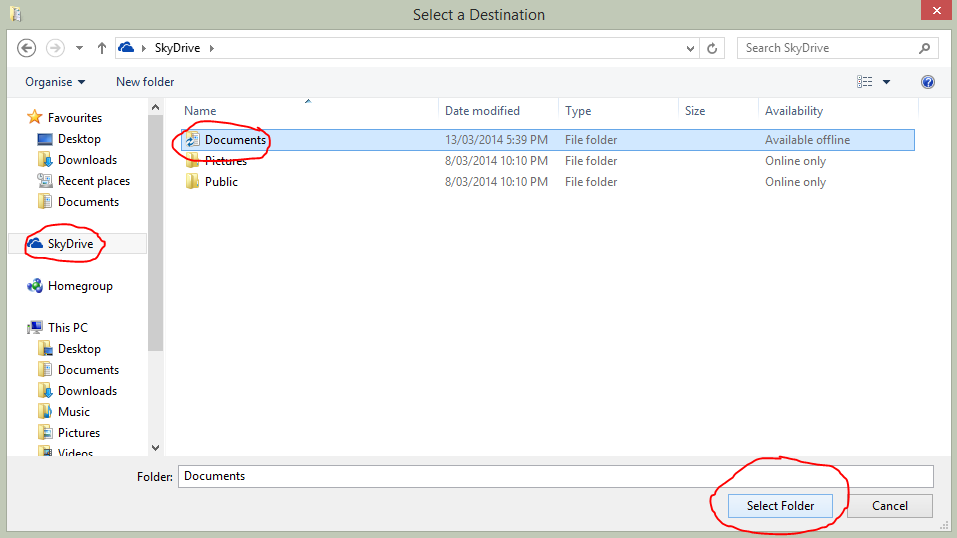
Once done, hit ok. Now all the files in the "Documents" folder will be saved on OneDrive, so you never have to worry about losing your documents.
Now if you sign into OneDrive on your smartphone, tablet or another computer, all of your documents will be readily available.

Pro Tip: Microsoft gives you 7GB of free storage with OneDrive, which should be plenty for documents and related files, as text type files such as spreadsheets, presentations and text documents are relatively small in terms of file size. So it is important to make sure you only store documents in there and you should have enough space. Example, make sure music files (such as pesky iTunes library files) aren't saved in your "Documents" as this can take up lots of space quickly.

If you liked this post, or found it useful, please feel free to share with your friends to pass the info on using the buttons below. As always, any comments or questions can be left in the comments box below.

Tuesday, 9 April 2013

Windows XP support ending

One year from today, Windows XP will be officially unsupported by Microsoft.

As noted on their life-cycle support page, there will be no more updates coming out of Redmond for the unbelievable success that is Windows XP. This operating system has been going since 2001, which makes it 12 years at time of writing. For software to last that long in the industry where things are changing every minute, and people have a hard time keeping up with the trends this is a huge deal, and massive success.

However, as mentioned, this success is coming to an end. Microsoft will be officially discontinuing the product. What does this mean for you?

  • Security vulnerabilities. If hackers find an exploit in Windows XP that is currently unpatched, they might choose to wait till after the product is discontinued before attempting their attacks on a system, or systems. This is a very real threat, that could cause loss of data, identity theft, etc. Having an up-to-date system is very important to receive regular updates on these vulnerabilities, and ensure your computer is patched and updated.
  • Hardware support. With new hardware coming out and the discontinuation of XP, getting digitally signed drivers for your hardware will become a very difficult task. You may not get the best performance out of your hardware, or worse, it might not even work, as there may not be a driver for it available.
  • Software support. Newer programs such as Microsoft Office, Internet browsers, etc may stop receiving support for XP, and as such, you'd experience a slower performance, web-pages may not display properly, or not at all, and some programs may cease to operate altogether.
So, with the above in mind, you'll probably need to get a new system. Unless your computer is as old as XP is, there is a good chance that it will work fine with some of the newer versions of Windows that are available.

Purchasing a copy of Windows 7 is impossible through Microsoft I've been informed both by trying myself online on the Microsoft store, and on the phone, but it is available if you go to computer shops and retailers that may still have copies left available for sale.

If you missed out on the Windows 8 upgrade offer from Microsoft when Windows 8 was first announced for $39, Windows 8 is available for sale on the Microsoft Store for AU $149.99, which will get you the Windows 8 operating system. However, some places are selling copies of Windows 8 for $59 on the store shelves, I have seen it available at JB-HiFi (if you live in Australia). Even if you don't need it now, you should probably get it before stocks run out at that price, and you'll have to pay nearly 3 times that later.

Alternatively, if you have XP on an old machine, and you don't think it will last more than a year, you may be better off just holding out, and buying a new computer next year which will come with Windows pre-loaded on it.

Any questions? Fire away in the comments section below!


If you liked this post, or found it useful, please feel free to share with your friends to pass the info on using the buttons below.

Wednesday, 28 March 2012

What does limited or no connectivity mean? And how to fix?


Update: If you are a Windows 7 or a Windows 8 user, the message you get may show that your Internet connection says limited access.

If you're using Windows XP, and you can't connect to the internet or anything else on your network, there is a good chance you've got this error. You may have a box with words similar to the image below appear on your screen.
What's happened? Well, when your computer connects to your modem or wireless router, it is asking for an address that is can use to communicate with other computers. If for whatever reason your modem/router is unable to give this address you get this error.
There are a couple of ways this can happen. Usually you've plugged the cables in, or your computer's wifi connection is up, but it's not getting any data flow.
As a result, there are a few different ways to fix it.
  • Start by turning everything off for at least 1 minute. This includes the modem, the router, the computer and anything else you use on your network. This is also known as a power cycle.
  • When everything is back up and powered on, if you're still getting the same error, you can try repairing the connection by hitting the repair button (as shown above)
  • If this doesn't fix it, there is a command you can run through the command line program in windows which should help resolve the issue.
    • Open the command line by clicking Start, then choosing Run
    • At the prompt, type "cmd" (without the quotes) and hit enter
    • You should have a black screen up with a prompt waiting for you to enter some text
    • At this point, type in "netsh winsock reset" (again without the quotes)
    • You will get a message saying successfully reset the winsock catalog, and it will say you need to reboot the machine.
    • Reboot your computer.
  • Lastly, if you're still reading and it's still not working, you can try factory resetting your modem/router that your computer is connecting to, which usually involves pressing the reset button on the back of the modem where all the plugs go or you can try with another modem/router.
These steps also apply to Windows Vista, and Windows 7. The error message is slightly different, saying "Connected with limited access" however, the steps taken to fix the issue are the same.